


How does the configurator for a single cabinet work?
Without the room planner, the configurator opens straight away with a single cabinet. Your customer chooses size and colour, sees the price update instantly and orders via the order overview.
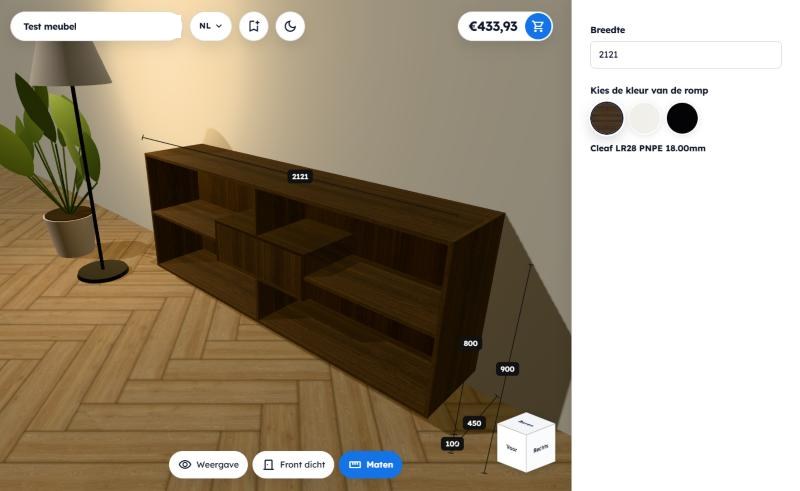
Short answer: Without the room planner, the configurator opens straight away with a single cabinet in 3D. On the right, your customer answers the few questions you have set up, such as width and colour, and sees the cabinet and the price change instantly. The shopping cart at the top right takes them to the order overview, where they place the order. In Wood Intelligence implementations, we see this format works best for standalone furniture, such as a TV unit or a desk: no room to draw, just choose and order.
Applies to
- The Wood Intelligence Plus online configurator, for a cabinet with Allow multiple cabinets switched off
- Your end customer, on your own website
- Available in Dutch, English, German and French
- Last checked: November 2026
Want your customer to draw a room and place several cabinets themselves? Read How does my customer furnish a room with the configurator?
With or without the room planner?
You decide this per cabinet. Open the cabinet in Wood Intelligence Plus and go to Configurator → Room:
- Allow multiple cabinets off: the configurator opens straight away with this one cabinet. That is what this article describes.
- Allow multiple cabinets on: the customer gets the room planner, draws the room and can place several cabinets.
Step 1: view the cabinet
Your customer sees the cabinet in 3D, in a room with a floor and a wall. They rotate the cabinet with the mouse, or click the cube at the bottom right for a front, side or top view. At the bottom you will find View, Front closed and Dimensions.
Step 2: choose size and colour
On the right are the questions you have set up for this cabinet, for example Width and Choose the carcass colour.
- Type a new dimension, or click a colour.
- The cabinet adjusts instantly.
- At the top right, your customer immediately sees the new price.
Step 3: save or order
- Does your customer want to continue later? The bookmark icon at the top left saves the design.
- Done? Click the shopping cart next to the price at the top right.
- The Order overview opens. Under Customer details, enter name, email address and address, and choose the Quantity.
- Click Place order, or Save for later.
The pencil next to the cabinet takes your customer back to the configurator to make further changes.
Why this way?
Not every customer wants to draw a room first. For a standalone piece of furniture, that is an extra hurdle. With the configurator for a single cabinet, the cabinet is there straight away and your customer only chooses what matters: size and colour. The fewer the steps, the greater the chance of an order.
Behind that simplicity is the work you have done as administrator: the design, the cost price and the choice of which questions the customer gets. That is why the price is correct for every size the customer chooses.
Please note
- Your customer sees no questions? Then the cabinet has no active article questions. Add them under Configurator → Questions.
- Your customer still gets the room planner? Then Allow multiple cabinets is switched on for this cabinet.
Not sure whether your furniture works better with or without the room planner? Through Get to know us, Wood Intelligence will think it through with you.
Frequently asked questions
When should I choose the configurator without the room planner?
For standalone furniture that the customer does not need to see in a room, such as a TV unit, desk or sideboard. If the cabinet has to fit in an alcove, under a sloping roof or next to other cabinets, choose the room planner.
How do I switch off the room planner for a cabinet?
Open the cabinet in Wood Intelligence Plus, go to Configurator → Room and switch off Allow multiple cabinets.
Can my customer save a design and continue later?
Yes. They save the design with the bookmark icon in the configurator or with Save for later in the order overview.
Does my customer see the price including VAT?
Yes. The order overview shows the unit price and the total, both excluding and including VAT.
Further reading
- How does my customer furnish a room with the configurator?
- How do I prepare a cabinet for the online configurator?
- The Wood Intelligence 3D configurator
More than one solution
Almost every question in this knowledge base has more than one solution. The best fit depends on your workflow, machinery and integrations. Not sure which applies to you, or are you using software we don't (yet) support? Feel free to email Wood Intelligence. We're happy to think along with any challenge.
imos is a brand of imos AG; Wood Intelligence is an independent consultancy.